
Trinidad Head
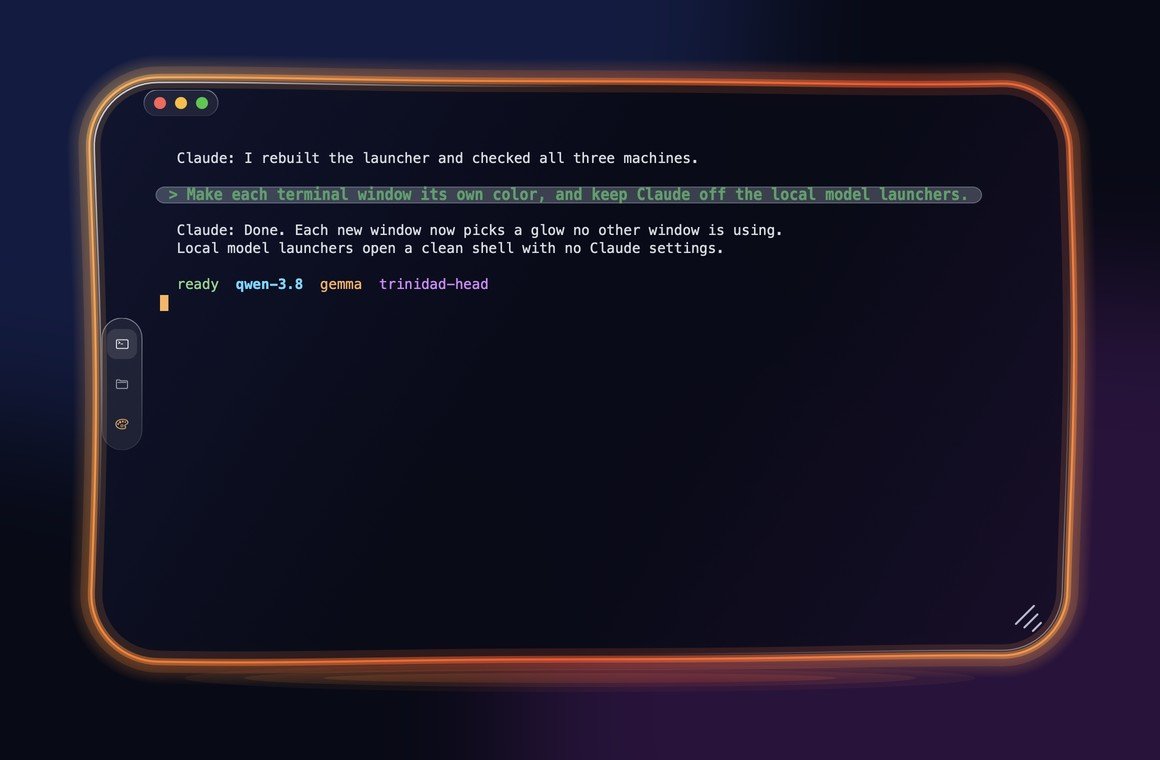
A terminal written from scratch in Rust for Windows and Mac: glass windows with a neon glow, a different color for every open window, and your own prompts easy to spot when you scroll back.
See it for yourself.
A terminal built as a platform, not just an app
Trinidad Head is a headland on the Northern California coast, tied to the mainland by a strip of sand. It's Matt's own terminal, built for the way he works all day: in Claude Code, on a Windows PC and two Macs.
It isn't a copy of an existing terminal. The part that turns a shell's output into a screen, the Windows console host, and the renderer are all our own code. There's no Electron and no borrowed terminal engine. Each piece is a separate module, so other tools can build on it.
What it does today
Its own terminal engine
Colors up to 16 million, cursor control, scroll regions, wide characters, full-screen apps and window titles, all in a portable Rust module with no UI or OS code.
Native on both systems
On Windows it runs PowerShell through the console host and draws with Direct2D. On the Mac it runs your login shell and draws with Apple's own graphics and text system.
A color for every window
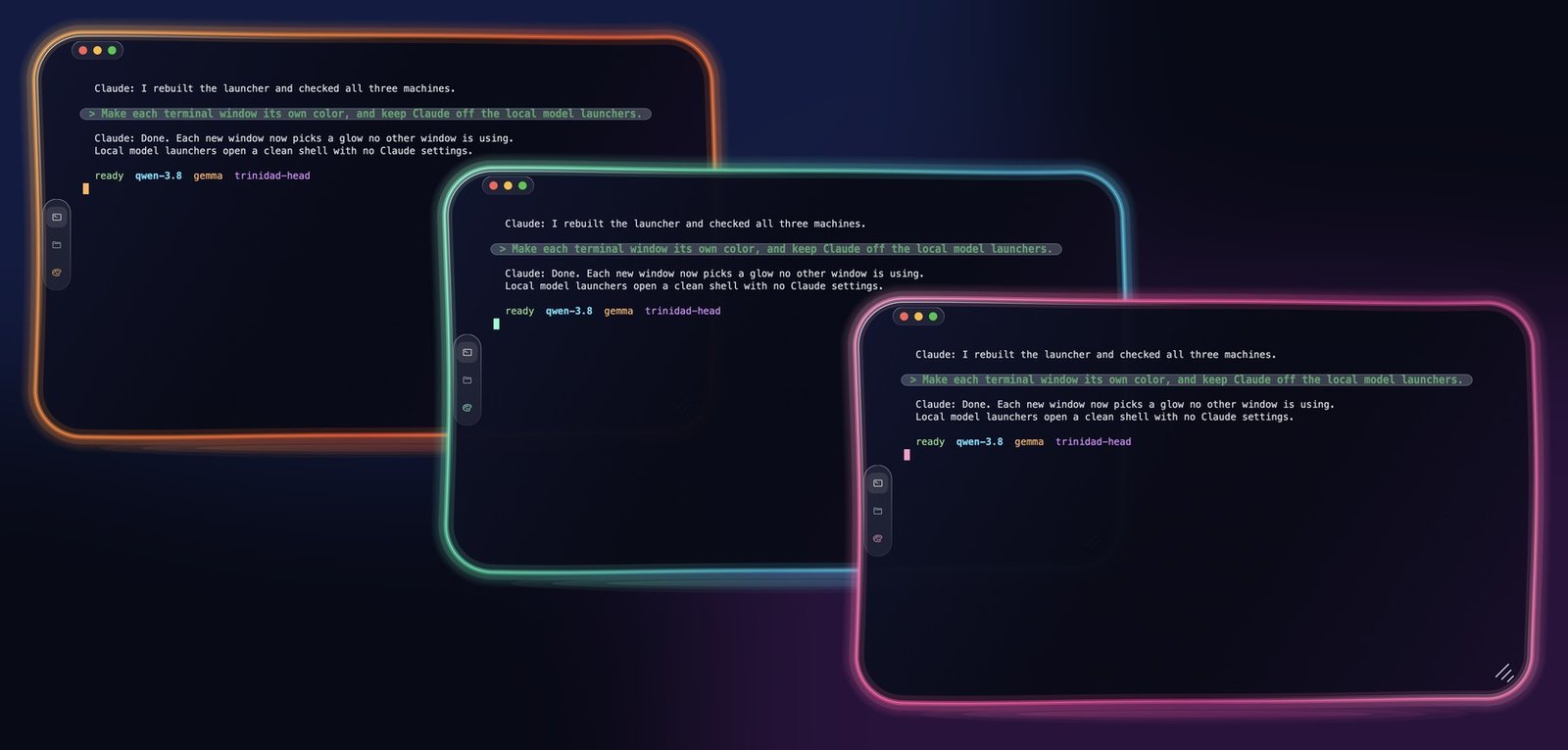
Eight glow colors. Each new window picks one no other open window is using, so you can tell your terminals apart at a glance.
Glass on Windows and Mac
A dark glass window with a rippled edge, a neon rim and red, yellow and green buttons, drawn the same way on Windows 11 and macOS.
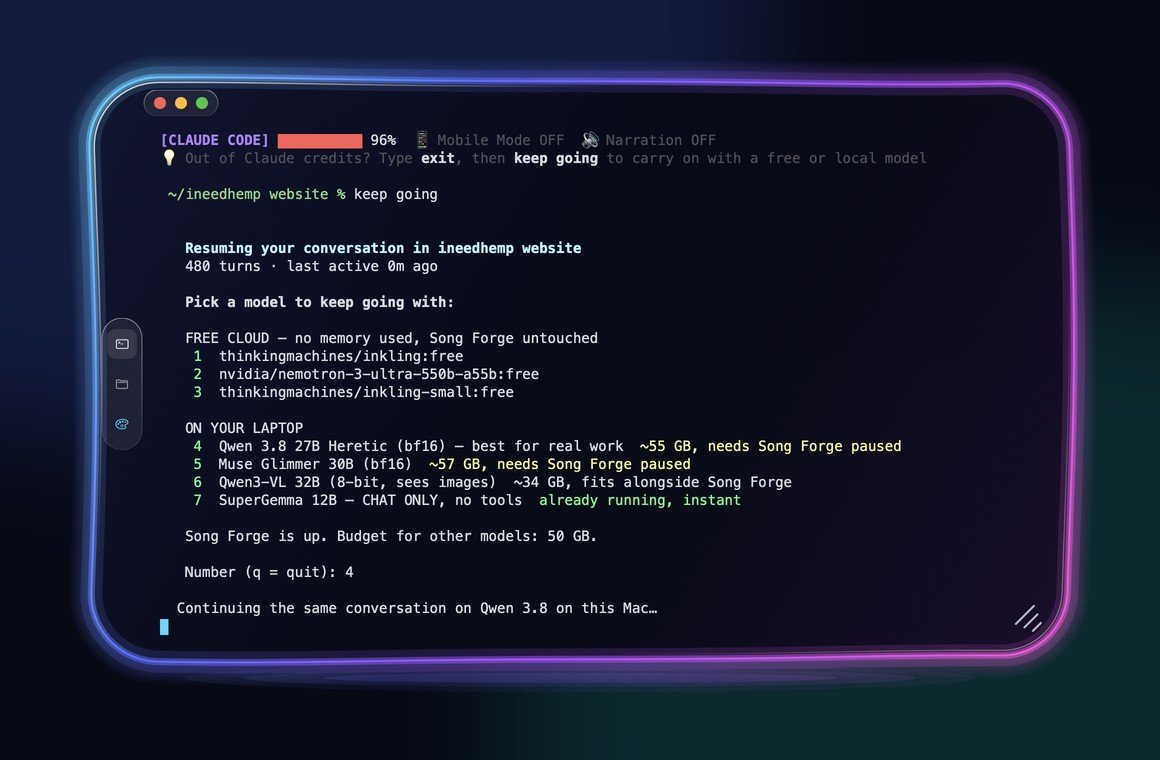
Out of Claude credits? Keep going
A reminder sits at the bottom of every Claude window. Type exit, then keep going, and the same conversation carries on with a free or local model. Pairs with Claude Code Local.
Edit your prompt like a text box
Highlight words you typed in Claude Code and press Backspace to delete them, or type or paste right over them. Normally a terminal can't touch Claude's prompt; Trinidad Head moves Claude's cursor for you and deletes exactly what you highlighted, even across wrapped lines. On Windows and Mac.
Copy and paste that just work
Drag to select, even inside Claude Code, and keep dragging past the edge to grab more than the window shows. Right-click for Copy, Paste and Select All.
Typing-delay meter
The title bar shows how long each keystroke takes to reach the screen, so speed gets measured instead of claimed.
Is this for you?
- Anyone running AI models on their own computer, especially with Claude Code Local: each model gets its own color, and your prompts are easy to find
- Windows users who want a terminal that looks and feels like the Mac's
- Anyone who spends the day in Claude Code and wants the prompt to behave like a text box
Try Trinidad Head
Free for Mac (Apple Silicon and Intel) and Windows 10 and 11. Unzip and open it, nothing else to install. The Mac app is signed and notarized by Apple, so it opens with no warning. On Windows, if a blue box says it protected your PC, click More info, then Run anyway.